PPG Curator’s Guide
Starting with PPG II, the PPG classification extends to the species and infraspecific levels. However, there are too many such taxa to broadly apply our proposal and voting system. Instead, we seek volunteers from PPG to curate individual taxa in their areas of expertise (Curators).
For their adopted taxa, Curators are responsible for:
- Deciding which species and infraspecific taxa to recognize and which to treat as synonyms
- Correcting errors (e.g., typographical errors in taxon names)
- Conducting general nomenclatural checks
These checks include verifying that names (including authors) are correctly formatted and that the appropriate basionym is indicated.
The PPG classification is edited using World Flora Online’s online editing tool, Rhakhis.
Guidelines for Curators
PPG Curators are asked to follow these guidelines:
Adopt a generally conservative approach. Avoid major departures from the status quo. If a taxonomic decision is likely to be contentious, it can be resolved using the same voting system employed for higher-level classification. Please remember that the PPG classification will serve a broad community, including as the taxonomic backbone for PteridoPortal and potentially for the ferns and lycophytes in iNaturalist.
Do not make changes at the genus level or above. Such changes may only be made through the formal voting process. For example, please do not synonymize a genus or reinstate one from synonymy (moving species between accepted genera is fine). If you believe a higher-level change is needed, please contact a member of the Coordinating Committee.
Familiarize yourself with Rhakhis before editing the real data. If you have not previously used Rhakhis, please begin with the test server and move to the main site only once you are comfortable with the interface.
Follow IPNI for author names and publications. If you believe IPNI contains an error, there is a process to contact them and request a correction.
Do not create names that have not been validly published. This includes unpublished combinations (e.g., comb. ined. names). If a new combination or other nomenclatural act is needed, please contact a member of the Coordinating Committee.
In general, fertile allopolyploids should not be treated as hybrids; nothotaxa should refer only to sterile hybrids.
Failure to adhere to these guidelines or to the PPG Code of Conduct may result in loss of editing privileges in Rhakhis, at the discretion of the Coordinating Committee.
Process
Obtain an ORCID iD.
An ORCID iD is required to log in to Rhakhis. If you do not already have one, you can register at https://orcid.org/. ORCID iDs uniquely identify researchers and are widely used by journals, funding agencies, and other organizations.Apply to become a Curator.
Prospective Curators should indicate the taxa they wish to curate by completing this Google Form. A member of the Coordinating Committee will contact you once your application has been reviewed. If accepted, you will be granted editorial access to your adopted taxa in Rhakhis and your name will be added to the PPG Curators Google Sheet.Learn to use Rhakhis.
Use the resources and guide below to learn how to use Rhakhis.Conduct initial review.
After reviewing all accepted names within your adopted taxon/taxa and confirming that the number of accepted species is approximately correct, please enter the date in thefirst_pass_donecolumn of the Google Sheet.Continue to monitor and update data.
Beyond identifying the correct number of accepted species, there are many tasks for Curators, such as placing unplaced names, specifying basionyms, and flagging hybrid taxa. New names are continuously being imported from IPNI, so please check periodically and edit the data as needed.
Note that the data in the Google Sheet is also made publicly available at the ppg-curators GitHub repo if anybody needs to access it that way.
Resources
This is webpage is not meant to be a comprehensive manual for Rhakhis; rather we try to briefly cover the main topics of interest to most Curators.
We strongly recommend consulting the below resources in addition to reading this webpage.
Official user manual
The Rhakhis user manual was written by the developers at World Flora Online and should be considered the official source of information for using Rhakhis. Note that it does not include content specific to PPG, as Rhakhis is also used by curators of other plant groups.
Workshop
At Botany 2025, there was a workshop on using Rhakhis for PPG. There are slides and a video available. Watching the video is highly recommended before you start using Rhakhis.
There is one correction to the workshop materials: only Rhakhis users who have been granted editing permissions may edit the data in the test server (referred to as the “sandbox” in the video). We thought anybody with an ORCID iD could edit data in the test server, but that was mistaken. So there was no “hands-on” session.
Using Rhakhis
Rhakhis has two interfaces: a test server, where users can experiment without risking messing anything up, and the main site, where changes are immediately1 reflected in the PPG classification.
- Test server: https://rhakhis-test.rbge.info/
- Main site: https://rhakhis-live.rbge.info/
One thing to keep in mind: there are no “Undo” or “Save” buttons in Rhakhis. Any change you make happens immediately and is permanent (that said, you can subsequently make another change to effectively reverse something if needed).
We recommend first using the test server (Figure 1) for practice until you get used to the interface, as any changes made there are not actually used in PPG or WFO, and it gets reset nightly.

Taxonomic rules in Rhakhis
Rhakhis uses “taxonomic logic”: that is, relationships between names have to make sense taxonomically (see YouTube clip at 40:45). For example, a synonym cannot be listed under another synonym, only an accepted name. Another rule is that only names with “valid” nomenclatural status can be accepted2.
Rhakhis will not explicitly tell you if what you are trying to do breaks a rule; you simply won’t be able to do it (the menu item will be greyed-out).
So one of the most important parts about using Rhakhis is to understand these rules and use your taxonomic logic when making changes.
Placing a name into the classification
You might think a common task would be add new names to the database.
However, this is actually quite rare. Instead, WFO has a system whereby it regularly checks IPNI and incorporates any new names it finds. This is great because author names are automatically standardized to IPNI and other information (such as publication) is also automatically imported.
These names, however, come into Rhakhis as “unplaced”—they are present in the database but are not connected to the taxonomic hierarchy. So one of the first steps as a Curator is to search Rhakhis for unplaced names.
To view unplaced names, first search for your higher-level taxon (i.e., family or genus). Then scroll down, and after the Nomenclatural References section will be a list of unplaced names (Figure 2). Select each name and either recognize it, move it to synonymy under a recognized name, and/or change its status to “invalid” or whatever designation is appropriate. Note that you won’t be able to accept a name unless its nomenclatural status is “valid”.
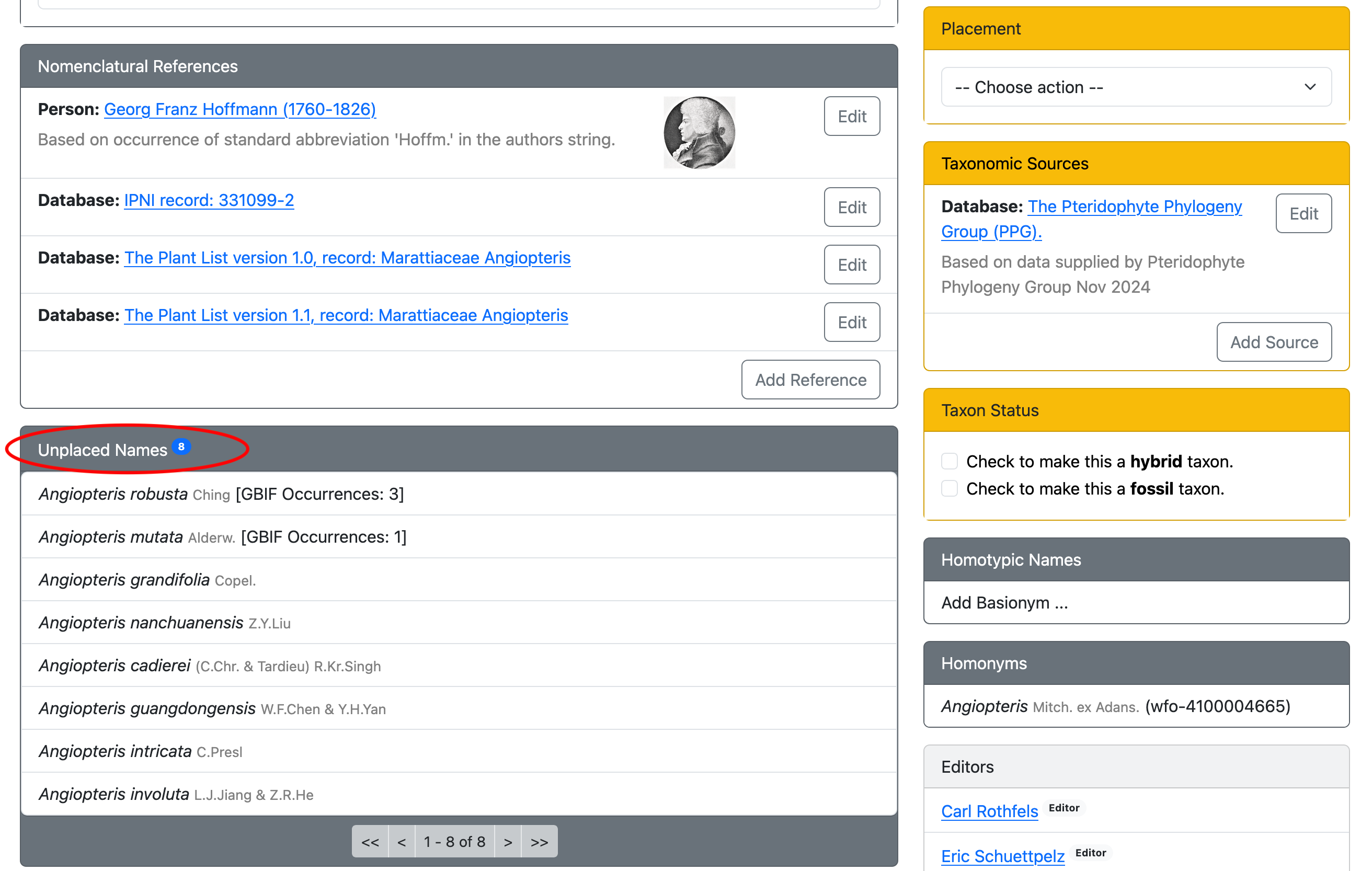
Most unplaced names will have a nomenclatural status of “unknown”, meaning that nobody has verified them yet.
A name cannot be recognized as accepted unless the nomenclatural status is set to “valid”.
If the name appears correct and you want to include it as accepted, set the nomenclatural status to “valid”, then choose the appropriate placement under the “Placement” menu.
Raising a name from synonymy
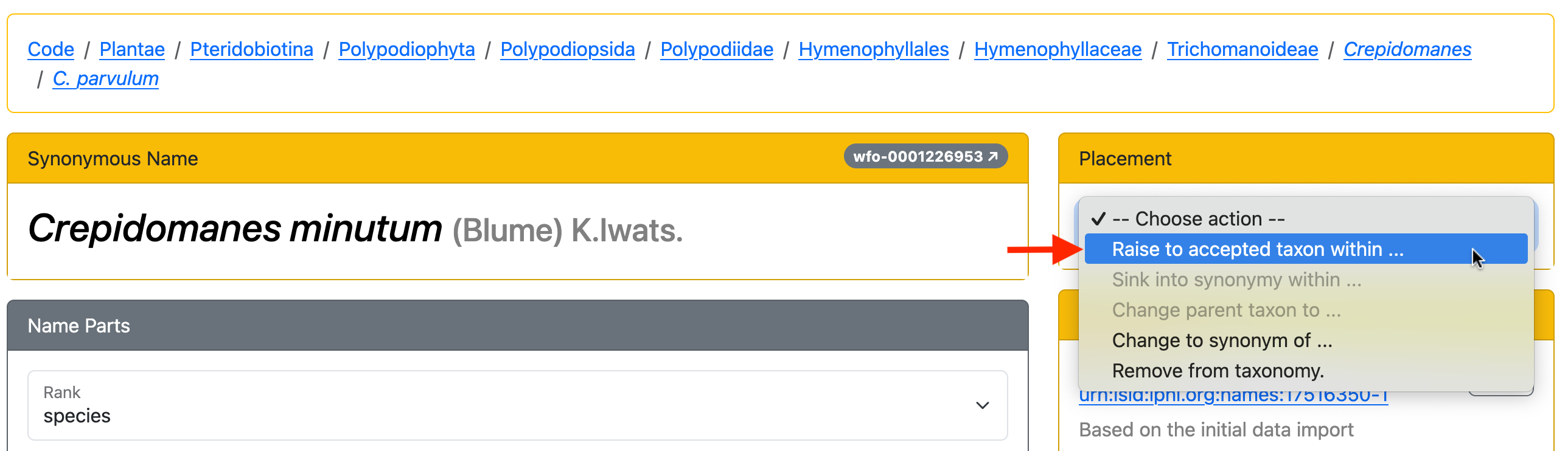
To raise a name from synonymy, go to the name (by searching for it, or by selecting it from the list of synonyms under the currently accepted name) and under placement choose “Raise to accepted taxon within” and then select the appropriate parent taxon (Figure 3). Note, the name that you are raising must be “valid” (under Nomenclatural Status), and the new parental taxon must be an accepted taxon (it cannot be itself a synonym of another name). So there may be some other edits that you might have to do before you can raise the name. After raising the new name, be sure to transfer any synonyms of that name to it, rather than leaving them as synonyms of the old name; this won’t happen automatically.
Reducing a name to synonymy
The steps to reduce an accepted name to synonymy are similar to those for raising a taxon: select the name, and then, under “Placement”, select “Sink into synonymy within”. You can then select the name that your focal taxon is a synonym of (that name must itself be an accepted name). NOTE: before you can reduce a name to synonymy, you have to re-map all existing synonyms of that name to the new accepted name.
It is tedious to transfer one name at a time when there are a large number of synonyms.
Fortunately, there is a shortcut: you can click on the small blue number that indicates the number of synonyms (see YouTube clip at 51:05). This brings up a menu that allows you to move all the synonyms at once to another name. Notice the bulk move still leaves the original accepted name in place; you have to move that one separately.
Setting the basionym
It is helpful to indicate the basionym of each name, which helps the system track homotypic names, etc. There’s an “Add basionym” button on the right hand side, which will even provide you with a list of candidate names to select from.
Indicating hybrid status
For hybrid taxa, the taxon name is entered without the “×”; hybridity is indicated by selecting the “is hybrid taxon” button under “taxon status”, on the right-hand side.
Currently, many hybrids lack correct hybrid status. We appreciate curators checking and clicking the “is hybrid taxon” when appropriate.
Formatting of author names and publications
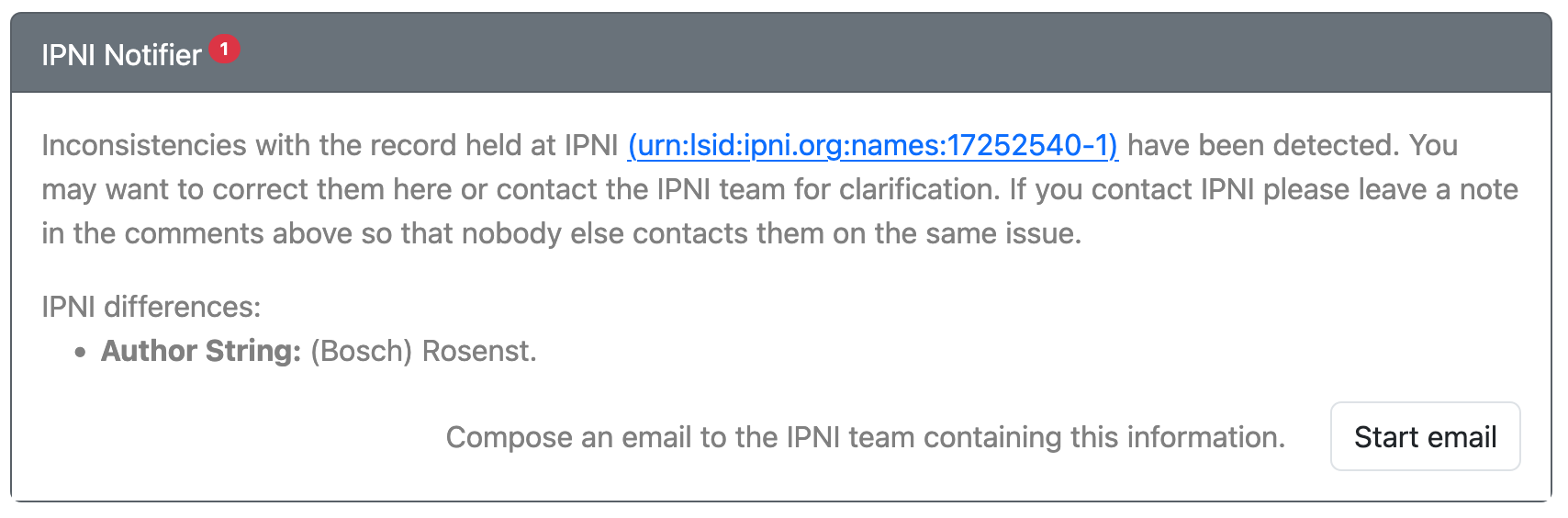
Generally, formatting of authors of scientific names and publications should follow IPNI. If the formatting of the author name or publication does not match that in IPNI, a warning will appear under the IPNI Notifier menu (Figure 4). In this case, the Curator needs to use their judgement to assess if the data should be edited to match IPNI, or if the IPNI format is incorrect. If the IPNI data are incorrect, please contact IPNI to notify them by clicking on the “Start email” button under the IPNI Notifier menu (Figure 4).
Deleting names
If you find a name that should be deleted, either due to error or duplication, first remove it from the taxonomy (“Placement” -> “Remove from taxonomy”), then set the nomenclatural status to “deprecated”. This means it will not appear in the public data, cannot be put back in the taxonomy, and will have a warning added that it should not be used anymore. That is, setting the status to “deprecated” is basically the same as deleting it (Rhakhis lacks an interface for curators to truly delete data).
Adding comments
There is a comments section for every taxon. You are free to enter any relevant text here. For example, notes about why a particular species is recognized as accepted, if the current treatment needs more attention, etc.
FAQ
Q: Do we need more Curators?
A: Yes! We’ve had a great response so far but there are also many taxa without a Curator yet, and other taxa where more curatorial help would be appreciated. If you have expertise in a group of pteridophytes, please volunteer to be a Curator!
Q: What is the deadline?
A: There is no formal deadline to complete the species-level work. However, we would appreciate it if you can complete the “first pass” (initial check of names in your group and editing of the data so that the total number of accepted species is correct) within a month of becoming a Curator. However, larger taxa will likely take more time.
Q: What if I need to make a change but lack the permission to do so?
A: For example, this may occur if you need to synonymize a species to an accepted name that you are not a curator for, or you may simply notice something that needs correction in another group. Please submit a taxonomic request, and one of the curators responsible for the group will then handle your request.
Q: What if I am an expert on the pteridophyte flora of a particular region, rather than a particular genus or family?
A: Due to the way Rhakhis is set up, we cannot assign Curators by region. We request in this case that you log in to Rhakhis, examine the data, and if you see something that needs editing, submit a taxonomic request as described above. However, if there are a substantial number of species of a group in your region of expertise, you may apply to be Curator of that taxon—many taxa (especially those with many species) will be curated by a set of Curators, each with expertise on a subset of the species.
Q: Is there a limit to the number of Curators for a particular taxon?
A: No. If there are multiple Curators for the same genus or family, we encourage them to contact each other to coordinate their work.
Q: To synonymize a name, is it required that that treatment has already been published?
A: No, as long as all names are validly published under the Code, please use your best judgement as a Curator as to which names to recognize and which to synonymize.